

SQL Billing Rule Datasets
SQL billing rules comprise two different datasets:| Dataset | Description | When to Use |
|---|---|---|
aws | Raw AWS Cost and Usage Report (CUR) data. | • Modify raw AWS CUR data before processing • Access columns of data that’s not available in Vantage Cost Reports • Work with Reserved Instances, Savings Plans |
costs | Vantage-processed cost data. Use when inserting or adjusting normalized costs. | • Apply provider-agnostic billing rules |
Rules written against
aws only affect how data appears in Vantage and do not modify the original CUR file.AWS Dataset
For theaws dataset, you can query any AWS CUR column except for resource_tag_% columns, which are custom tag keys that vary by account.
Costs Dataset
The Vantagecosts dataset contains normalized cost data with the following columns:
| Column | Type | Description | Example Values |
|---|---|---|---|
amount | decimal | The cost amount in the specified currency | 100.18 |
currency | string | Currency code | USD, EUR |
usage_amount | decimal | Amount of usage | 25 |
usage_unit | string | Unit of measurement | request, GB, Hours |
provider | string | Cloud provider | aws, azure, gcp |
billing_account_id | string | Billing account ID | 10001 |
account_id | string | Account ID | 10101010 |
service | string | Service name | Amazon S3, Amazon Relational Database Service, Azure Databricks, Log Management |
region | string | AWS region | us-east-1, us-west-2 |
resource_id | string | Unique resource identifier | a-resource-id |
cost_category | string | High-level cost category | API Request, Compute Instance, Storage, Data Transfer |
cost_sub_category | string | Detailed cost subcategory | DataTransfer-Out-Bytes, DataTransfer-Regional-Bytes |
cost_type | string | Type of cost (same as “Charge Type” in cost reports) | Usage, Discount, Fee, Credit, Tax |
costs, you can discover the exact values to use by referencing your existing cost data in Vantage:
- Cost Reports Filters: Use the filters in Cost Reports to see available values for:
- Service names: Look at the Service filter dropdown
- Cost types: Use the Charge Type filter dropdown (see the Charge Type filter documentation for a complete list of available values)
- Cost categories: Check the Category and Subcategory filter dropdowns, which vary by service
- Regions: View available regions in the Region filter
- Resource IDs: See actual resource identifiers in your cost data
- Available Columns List: In the SQL query editor, use the Available Columns list on the left to see all queryable columns and copy column names for your queries
- Autocomplete: The SQL editor provides autocomplete suggestions as you type column names and values
Azure-Specific Field Mapping
Custom billing rules that use thecosts schema run against normalized cost rows as stored after ETL, not against the Cost Report filter names in the table above. For Azure, that means costs.provider_account_id and costs.resource_account_id reflect fields from Microsoft cost data (for example, billing account ID vs subscription ID) and do not always match the “Subscription” and “Resource group” labels in reports or API filters.
Default behavior (most accounts):
costs.resource_account_idis typically the Azure subscription identifier from cost data.costs.provider_account_idis typically the billing account identifier (for example, BillingAccountId from the source export), not the subscription.
costs.provider_account_id may hold the subscription ID and costs.resource_account_id may hold another dimension (for example, resource group name) from the export.
What to do when writing rules:
- Compare your condition to actual values on a known cost line (for example, CSV export or API) if you are not sure which column contains the subscription.
- If costs do not change as expected after saving a rule, verify you are filtering on the column that contains the subscription (or billing account) for that tenant.
SQL Operations
Use the following SQL operations to define billing rules:| Operation | Description |
|---|---|
UPDATE | Adjust an existing cost value, such as applying a percentage discount. |
DELETE | Remove specific line-items from being billed. |
INSERT | Add new line-items, like charges or credits (costs dataset only). |
Additional SQL Billing Rule Considerations
Date Logic Do not use date logic in your SQL statement. Instead, use the rule’s Start Date and End Date fields to define the application period. If SQL date conditions conflict with the rule’s configured dates, the rule may not apply as expected. Multiple Adjustments For multiple adjustments with different conditions, create separate billing rules for each one. They will be evaluated in sequenced order. Rule Order Rules are applied in the order listed. If you need multiple adjustments to the same item (e.g., a discount followed by a fee), create separate rules in sequence. Limits Each workspace can define up to 20 billing rules. If you need more, contact support@vantage.sh.How to Construct SQL Statements
UPDATE Statements
UPDATE Basic Structure
Common patterns:
- Apply discount:
SET costs.amount = costs.amount * 0.90(10% discount) - Apply markup:
SET costs.amount = costs.amount * 1.15(15% markup) - Set fixed amount:
SET costs.amount = 100.00
DELETE Statements
DELETE Basic Structure
Common patterns:
- Remove by service:
WHERE costs.service LIKE 'AWS Support%' - Remove by cost type:
WHERE costs.cost_type = 'AWS Marketplace' - Remove by amount:
WHERE costs.amount < 0.01 - Remove by multiple conditions:
WHERE costs.provider = 'aws' AND costs.service = 'AmazonS3'
INSERT Statements
INSERT statements can only be used with the
costs dataset. INSERT is not supported for the aws dataset.INSERT Basic Structure
Common patterns:
- Add credit:
VALUES ('aws', 'Billing Credit', 'Billing Credit', 'Billing Credit', 'Credit', -100) - Add processing fee:
VALUES ('aws', 'Processing Fee', 'Processing Fee', 'Processing Fee', 'Fee', 5)
Create SQL Billing Rules
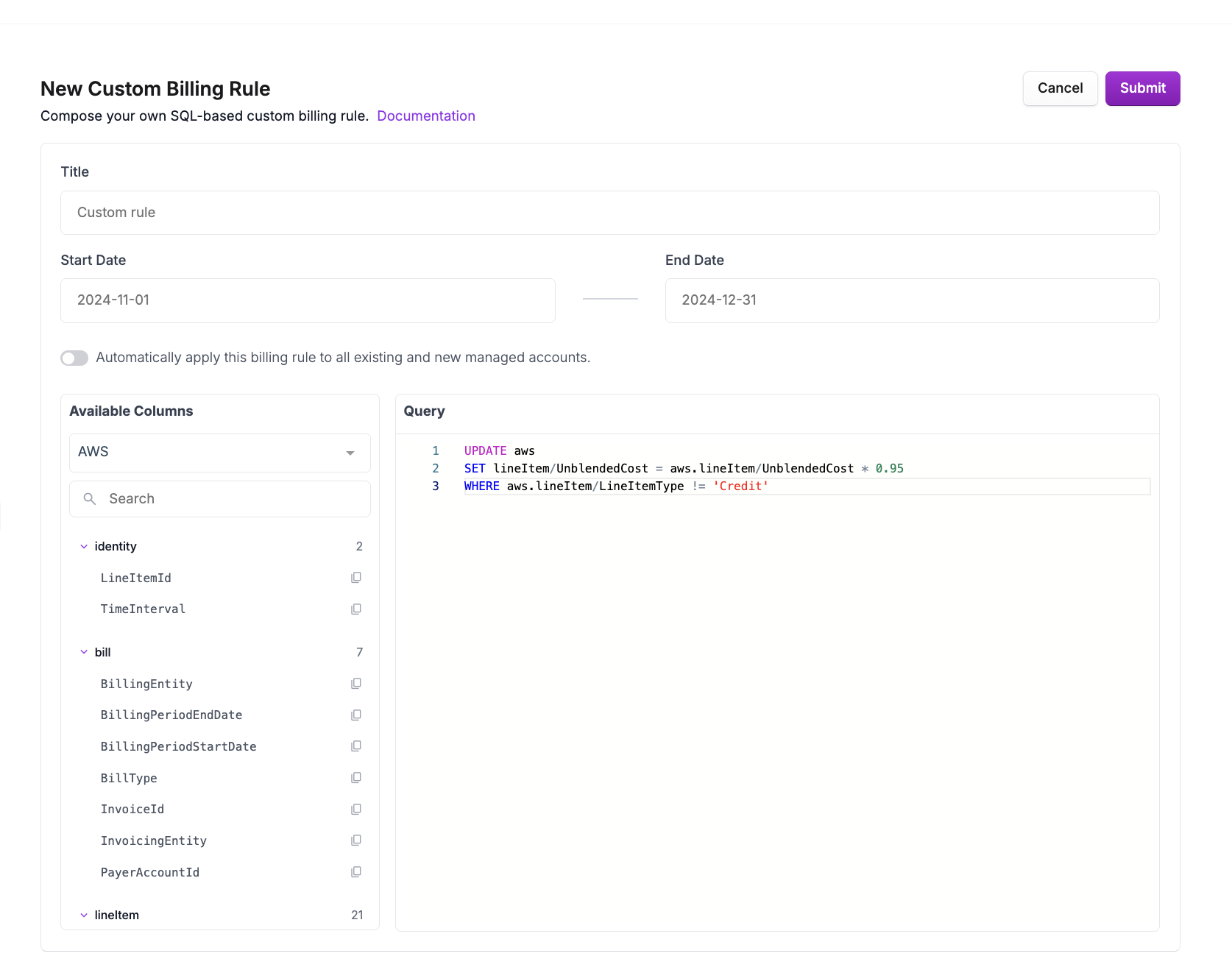
To create a new SQL billing rule:Create a new custom rule
- From the top navigation, click Settings.
- From the left navigation, under Partner Settings, select Billing Rules.
- Click New Billing Rule, then select Custom.
Configure the rule
Add the following rule details:
- Title: Give your rule a descriptive name.
- Start Date/End Date: Define the date range for which the rule should apply.
- Select whether you want to automatically apply this billing rule to all existing and new managed accounts.
Write the rule SQL
- From the Available Columns list, select either the AWS/
awsor Vantage/costsschema. - Under Cost Fields, view all available fields. Click a field to copy it.
- In the SQL editor, write your SQL statement using the selected dataset and columns. The SQL editor supports autocomplete for column names and syntax highlighting.
- Click Submit to create the rule.
Example Rules
Apply a 5% Discount
Apply a 5% discount to all cost line items, excluding credits:At this time, multiplication is supported, but not division.